Plugins Toolbar Preferences
The Plugins Toolbar preferences determine which icons will appear on the Plugins Toolbar panel, shown below. These icons let you quickly access Dragonfly plug-ins — such as Deep Learning, Image Processing, the Macro Builder, and others.
Plugins Toolbar

Choose Plugins Toolbar in the Preferences dialog to open the Plugins Toolbar preferences, shown below.
Plugins Toolbar preferences

To customize the Plugins Toolbar panel, shown below, choose the items that you want to appear on the toolbar from the list. De-select an item to remove it from the panel.
| Item | Description | |
|---|---|---|

|
Action Log Viewer | Opens the Action Log Viewer, which lets you view and track which areas of the software have been accessed and which actions have been performed using the interface. |

|
Callback Observer* | Opens the Callback Observer dialog. |

|
Deep Learning Tool | Opens the Deep Learning Tool, which lets you create, edit, and train deep models for image processing and segmentation tasks (see Deep Learning Tool). |

|
Camera Position Bookmarker | Opens the Camera Position Bookmarker, in which you can apply bookmarked camera positions to maintain consistency between views of different datasets or within sequences of views (see Bookmarking Camera Positions). |

|
Active Contour | Opens the Active Contour module, in which you can quickly and efficiently complete segmentation tasks using the active contour model (see Active Contour). |

|
Histographic Segmentation | Opens the Histographic Segmentation dialog, in which you can quickly segment a dataset by selecting clustered data values (see Histographic Segmentation). |

|
Hyperspectral Image Analysis | Opens the HyperChannels panel on the left sidebar. This module facilitates the interactive visualization, manipulation, and data analysis of multi-channel images. |

|
Image Filtering | Opens the Image Processing contextual window, which provides an environment for applying standard image filters, deep models, and arithmetic operations to image data (see Image Filtering). |

|
Instance Observer* | Opens the Instance Observer panel on the right sidebar. |

|
Macro Builder | Opens the Macro Builder, which provides an intuitive, visual way to build and edit complex macros or to combine multiple macros for batching (see Working with the Macro Builder). |

|
Macro Player | Opens the Macro Player, in which you can record and play macros (see Macros). |

|
Opacity Console | Opens the Opacity Console dialog, in which you can adjust the opacity of the objects in the currently selected view. |

|
Object Model Observer* | Opens the Object Model Observer dialog and graph. |

|
Profiler* | Opens the Profiler panel on the right sidebar, in which you can wrap methods dynamically and monitor the timing of an operation. |

|
Python Console | Opens the Python Console, which provides a quick way to execute commands and explore possibilities that can be pasted into larger scripts. |

|
Reference Finder* | Opens the Reference Finder panel on the right sidebar and Results dialog. |

|
Script Runner* |
Opens the Script Runner dialog, which is designed to execute custom code.
The Script Runner can be used for introspection purposes on any Python object in the application, such as class instances, widgets, or ROIs. It can also be used to evaluate code snippets or to debug a few lines of code that is used in a file-based extension, such as a generic menu item. |

|
Machine Learning Segmentation | Opens the Machine Learning Segmentation plug-in, which is an advanced machine learning module for image segmentation (see Machine Learning Segmentation). |

|
Widget Observer* | Opens the Widget Observer panel on the right sidebar. |

|
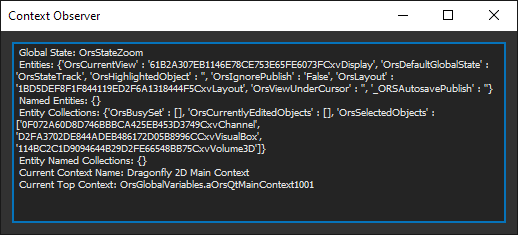
Context Observer |
Opens the Context Observer dialog, shown below, in which you can see details about the currently selected state.
|

|
Reimporter* | Opens the Reimporter panel on the right sidebar, in which you can re-import files modified outside of Dragonfly and update the application without restarting. |
* Refer to the Dragonfly developer documentation (https://dragonfly.comet.tech/en/support/developers-documents) for more information about these developer tools.